Changes to EBSCO databases
From The Knowledge Network, we provide access to a range of EBSCO databases for health and social care staff in Scotland:
- CINAHL (Nursing and Allied Health literature)
- Health Business Elite
- Library, Information Science and Technology Abstracts
- Nursing and Allied Health Reference Source (NAHRS)
In July 2026, EBSCO moved all of their databases to a new interface - the content is the same but how it looks, as well as how you search, navigate and manage saved records and searches is now different.
This page includes links to guidance and training in one place to help you navigate the changes, as well as a link to all of our databases below.
Tell us what you think
We would like to hear about your experience of using the new EBSCO interface. Share your feedback and suggestions for improvement using our feedback form. We will pass along feedback and enhancement requests to EBSCO:
🔗EBSCO: Enhancement Request and Issue Reporting Form
If you can't find what you are looking for or need any support, please contact our Knowledge Services Help Desk.
Subject headings
When building a search strategy, you might find it useful to start with subject headings and then combine with keywords.
You can access the thesaurus (subject index) by ticking the 'suggest subject terms' box. This is not selected by default, so you do need to tick this box each time you want the database to suggest subject terms.
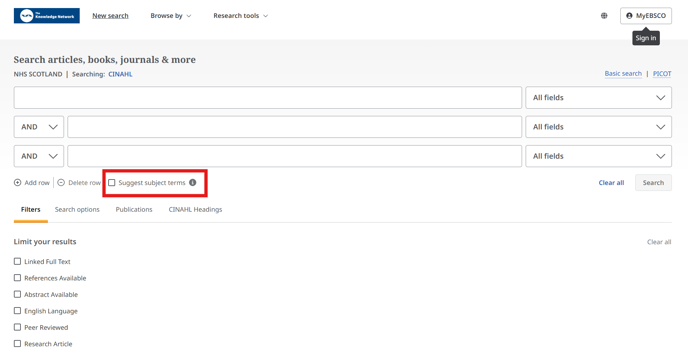
Not all items are assigned to subheadings. If you want to include all items, you should leave this box unticked. You can then type directly into the search box and search, without looking up terms in the subject index
If you would like suggested subject terms, tick the box and type into the search box.
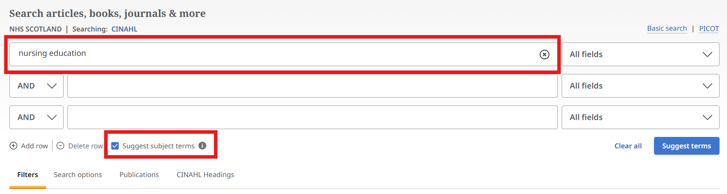
This should change the blue 'search' button at bottom right of the search boxes to a 'suggest terms' button. Clicking the button will take you to the subject index.
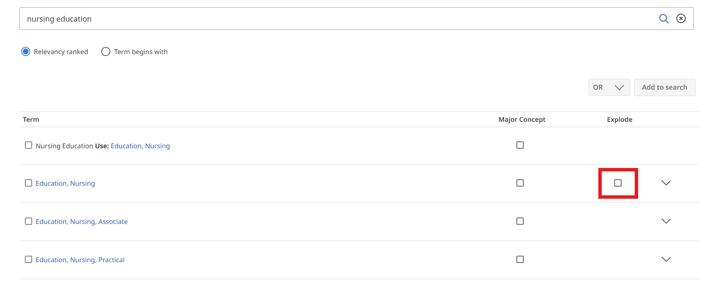
The subject index will show you the subject tree where you can see the headings nested under your preferred term. If you want to select all these sub-headings tick the 'explode' box. This explode box is unticked by default.
Clarification
After you carry out a search, you can filter the results by publication type. Some users noted inconsistencies in the list of publication types they were seeing. This is because the list is contextual. You will only have the option to filter by the types of publication that you have in your search results set.
Note that classification of publications in databases can be inconsistent.
Folders and exporting results
You can create specific project folders for each project. Search results can be added directly to a project folder, which may be helpful if you are handling large amounts of results. This will also keep your main Saved folder cleaner. The search strategy can also be saved to the project. Up to 500 records can be directly exported or saved, and they can be processed in batches of 500.
You can still export results up to a total of 25,000 via a link. You will receive an email with a link to download the bulk results. You need to do this from the search results page, not from a project.
When opting to save a search strategy, the 'saved search set' option will save all the lines of the search so that you can re-run the search in full. This is the recommended option.
When downloading your search strategy, you can choose the CSV option to get the results in a table format. This is the option that is likely to require the least editing for a report.
Truncation and wildcard examples
Some of the search features are unchanged from the classic interface. These include the syntax for truncation, phrase searching, wildcards, alternate spellings and proximity search, as noted:
Truncation: Physiotherap*
Phrase searching: "mental health"
Wildcard: Wom?n, analys?s
Alternate spelling: P#ediatrics
Proximity search
Near
Finds the words if they are within the number of words (or less), regardless of order
Education* N3 assessment = returns both educational assessment and assessment of education
Within
Finds the words if they are within the number of words (or less), and in the order you entered them
Education* N3 assessment = returns educational assessment but not assessment of education
Enhancement requests
The Knowledge Services team have submitted an enhancement request to EBSCO asking them to provide additional flexibility in citation exports, including the ability to select which URL type is exported (for example, DOI URL, EBSCO permalink or institutional link resolver/LIBKey URL). This is under review with the development team at EBSCO and we will update as further information becomes available.
We requested this enhancement to provide users with the option to select the URL for access to full text resources that works best for them, reducing the number of navigations required to access the full text.
If you have feedback about the changes to EBSCO databases or suggestions for improvement, you can send these to the PSD Scotland Knowledge Services team via the form at the top of this page. We will pass this on to EBSCO, follow up on any problems users may be experiencing and keep our guidance up to date.
Basic Searching for CINAHL on the new EBSCOhost (60-mins)
This session will introduce basic search concepts for searching CINAHL on the new EBSCOhost interface for health and social care staff in Scotland. In this session we will look at use of the AI-assisted search, performing keyword (free text) searches, applying available filters and using a MyEBSCO user account to save, retrieve search results.
Training slides: Basic Searching For CINAHL On The New Ebscohost NHS Scotland
Advanced Searching for CINAHL on the new EBSCOhost (60-mins)
This session will introduce advanced search concepts for searching CINAHL on the new EBSCOhost interface for health and social care staff in Scotland. In this session we will look at Title and Abstract and subject searching, use of precision (proximity) operators, combining searches in the Search History and reviewing available options to save, share, download and export search results, as well as saving, editing and downloading searches.
Training slides: Advanced Searching For CINAHL On The New Ebscohost NHS Scotland
To hear about future training, subscribe to our Knowledge Nuggets newsletter.
Find general training videos and sessions available to all staff from EBSCO:
Your NHS Scotland Library Service can support you to use databases. Contact them to find out more: Local Library Services | The Knowledge Network
Or contact our PSD Scotland Knowledge Services Help Desk.

Our subscription databases
Access databases across a range of subjects including social care, nursing, medicine and management.
View all databases